7 Best Car GPS for Seniors and Older Drivers (October 2026)
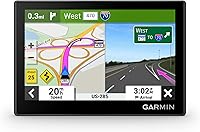
The best car GPS for seniors and older drivers include the Garmin DriveSmart 66 for everyday driving, the Garmin DriveSmart 76 for frequent road trips, and the Garmin DriveSmart 55 for crowded dashboards.
On this page (8 sections)
- How we chose car GPS units for seniors
- The best car GPS picks for seniors and older drivers
- How to choose the best car GPS for seniors
- Should you choose a standalone GPS or a phone?
- How should you set up a car GPS before driving?
- Which GPS mistakes should you avoid?
- How do you keep a car GPS ready for regular use?
- Which car GPS is the best fit for you?
The best car GPS for seniors is the Garmin DriveSmart 66 for most drivers because it balances screen space, voice destination entry and convenient updates. Choose the DriveSmart 76 if you need more room to read the map, or the Drive 53 if you prefer touch menus and spoken instructions.
Age alone doesn't decide which navigator fits. Your normal seating position, comfort with touch controls and willingness to connect a smartphone matter more than a long feature list.
A dedicated navigator keeps directions on a separate screen from your phone. The useful question is whether that screen makes your regular trips easier to plan and follow.
For a broader look at device types, see our GPS navigator buying guide. Our DriveSmart 66 vs 76 comparison focuses on the choice between the 2 leading picks here.
Our picks at a glance
-
1

-
2
-
3

How we chose car GPS units for seniors
We compared readability, destination entry, spoken guidance and upkeep to find useful choices for different drivers. Simple menus and a suitable mounting position matter as much as screen size.
The DriveSmart 66 leads because it combines voice controls with a body smaller than the larger DriveSmart options. Other picks serve more specific needs, including limited dashboard space, phone-based trip planning and touch-only operation.
A lower-ranked model can still be the right choice if its controls fit your habits. Don't buy extra connected features unless you plan to use them and are comfortable maintaining the phone connection.
| Product | Best for | Screen | Controls | Maps | Our score |
|---|---|---|---|---|---|
| Garmin DriveSmart 66 | everyday driving | 6-inch | Touchscreen and voice | North America map updates | 9.2 |
| Garmin DriveSmart 76 | frequent road trips | 7-inch | Touch and voice | North America map updates | 8.9 |
| Garmin DriveSmart 55 | crowded dashboards | 5.5-inch | Touch and voice | Included map updates | 8.6 |
| Garmin Drive 53 | touch-menu users | 5-inch | Touch | North America map updates | 8.5 |
| Garmin DriveSmart 86 | spacious dashboards | 8-inch | Touch and voice | North America map updates | 8.4 |
| Garmin Drive 7.1 | phone-assisted planning | 7.1-inch ultrawide | Touch and voice commands | North America | 7.7 |
| Garmin Drive 52 EX | planned leisure trips | 5-inch | Touch | U.S. and Canada map updates | 7.4 |
The best car GPS picks for seniors and older drivers
The DriveSmart 66 is the strongest starting point, with the other models offering clear reasons to choose differently. Match each pick to how you enter destinations, where you can mount it and how much map space you need.
Garmin DriveSmart 66
- 6-inch high-resolution display
- Garmin voice assist
- Driver alerts
- Wi-Fi map and software updates
A practical starting point for drivers who want voice destination entry and a screen that takes up less space than the larger DriveSmart models.
Pros
- Voice assist for finding destinations
- School zone, curve and speed change alerts
- Wi-Fi updates without a computer
Cons
- App-connected services require a compatible smartphone
- Less screen area than the DriveSmart 76 and 86
Choose the Garmin DriveSmart 66 if you want help entering destinations without moving to a particularly large navigator. Its 6-inch high-resolution display and Garmin voice assist offer a useful balance for everyday appointments, errands and unfamiliar routes.
Built-in Wi-Fi lets you update maps and software without a computer. That makes it a good fit if you have home Wi-Fi but would rather avoid connecting another device to a laptop.
A compatible phone running the Garmin Drive app adds live traffic, weather, parking, fuel information and smart notifications. Treat those as optional parts of your routine, and decide which ones you want before pairing.
Skip this model if you already find maps of this size difficult to read from your seat. The larger DriveSmart options deserve a closer look before you commit.
For a fuller look at its controls and features, read our Garmin DriveSmart 66 review.
Garmin DriveSmart 76
- 7-inch high-resolution display
- Garmin voice assist
- Driver alerts
- Wi-Fi map and software updates
More screen area suits drivers who regularly follow unfamiliar routes and have room for a larger navigator.
Pros
- More map space than the DriveSmart 66
- Voice assist for destinations
- Wi-Fi updates without a computer
Cons
- App-connected services require a compatible smartphone
- Needs more mounting space than the DriveSmart 66
Choose the Garmin DriveSmart 76 if you often follow unfamiliar roads and want more map space than the 66 offers. Its 7-inch high-resolution display suits drivers who find a larger route view easier to follow.
Voice assist handles destination requests, and the travel tools include a national parks directory, historic sites and points of interest. These are useful for planning stops before a leisure trip rather than searching through menus while moving.
The larger body needs a suitable position in your car. Check whether it will sit near your natural line of sight without covering the road, a vent or a dashboard control.
Skip it if the 66 is already easy for you to read and fits your car better. Choose the 76 for a real viewing benefit, rather than assuming the larger model will simplify every task.
The DriveSmart 66 vs 76 comparison helps you weigh that specific tradeoff.
Garmin DriveSmart 55
- 5.5-inch display
- Simple menus
- Voice activation
- Garmin Traffic alternate routes
A smaller body combines simple menus with voice activation for drivers who have limited mounting room.
Pros
- Simple on-screen menus
- Garmin Traffic suggests alternate routes
- Wi-Fi map and software updates
Cons
- Less screen area than the other DriveSmart models here
- Hands-free calling requires a compatible smartphone
Choose the Garmin DriveSmart 55 if dashboard space is tight but you still want voice activation and simple menus. Its body measures 5.4 inches wide by 3 inches high, making it worth considering where a larger device would be awkward.
Garmin Traffic can suggest alternate routes, while built-in Wi-Fi handles map and software updates. Hands-free calling is also available when paired with a compatible smartphone.
The main compromise is the smaller map view. Don't choose it just because it fits neatly if you need to lean forward to read directions from your normal seat.
This model suits a driver who can comfortably read the display and prefers a compact device with alternatives to touch entry. Skip it if increasing map space is your main reason for replacing a phone or older navigator.
For choices beyond this senior-focused roundup, see our best car GPS navigators guide.
Garmin Drive 53

- 5-inch glass touchscreen
- Spoken landmark guidance
- Simple on-screen menus
- North America map updates
A clear choice for drivers who prefer to enter destinations on a touchscreen and listen to directions along the way.
Pros
- Spoken directions with landmark guidance
- Shows food, fuel and rest areas along the route
- U.S. national parks directory
Cons
- Choose another model if voice destination entry is essential
- Small screen may not suit drivers who need more map space
Choose the Garmin Drive 53 if you prefer to enter a destination by touch and then listen to instructions. Its 5-inch glass capacitive touchscreen and simple menus keep the buying decision focused on core route tasks.
Spoken turn-by-turn directions include Garmin Real Directions landmark guidance. Food, fuel and rest areas appear along the active route, which can help you plan a break without starting a separate destination search.
The national parks directory is useful for trips where you need an entrance, visitor center or landmark rather than just a park name. Set that precise destination before leaving so the route leads toward the part you intend to visit.
Skip the Drive 53 if voice destination entry is a requirement or small maps are already a problem. It is the better fit for someone comfortable with touch controls, rather than someone trying to avoid them.
Garmin DriveSmart 86
- 8-inch dual-orientation display
- Garmin voice assist
- Driver alerts
- Wi-Fi map and software updates
The largest display in this group suits drivers who prioritize map space and have a clear, suitable mounting position.
Pros
- Largest screen in this group
- Portrait or landscape orientation
- Voice assist for destinations
Cons
- Needs careful placement to avoid blocking the road view
- App-connected services require a compatible smartphone
Choose the Garmin DriveSmart 86 if maximum map space is your priority and your car has a suitable mounting location. Its 8-inch dual-orientation display can show the route in portrait or landscape orientation.
The body measures 7.6 inches wide by 4.7 inches high before allowing for its mount. Use those measurements to judge the space from the driver's seat, rather than relying on the screen diagonal alone.
Voice assist offers an alternative to entering destinations by touch. Like the smaller 66 and 76, it also supports Wi-Fi updates and phone-connected services.
Skip it if the device would cover part of the windshield view or force you to look far away from the road. Turning the display changes its shape, but it doesn't remove the need for a clear mounting position.
This is a deliberate choice for a roomier setup, not an automatic upgrade for every older driver.
Garmin Drive 7.1

- 7.1-inch ultrawide display
- Phone-to-navigator destination sharing
- Voice commands
- EV charging station search
An ultrawide screen and destination sharing suit drivers who like to plan trips on a phone before starting the car.
Pros
- Send destinations from the Garmin Drive app
- Shows upcoming traffic signs and lights
- Filter EV charging stations by charging power
Cons
- Live traffic and weather require the Garmin Drive app
- Voice commands support a defined set of 8 languages
Choose the Garmin Drive 7.1 if you like to plan destinations on your phone before starting the car. The Garmin Drive app can send those destinations straight to the navigator, reducing the need to enter the same address twice.
Its ultrawide display has a different shape from the other choices here. Upcoming traffic signs and lights add route context, while charging-station search lets EV drivers filter by charging power.
Live charging availability, traffic and weather depend on pairing with the app. Confirm that the connected features you want work with your phone before relying on them for a trip.
Voice destination commands support English, German, French, Spanish, Italian, Danish, Dutch and Swedish. Check that your preferred language is among them.
Skip this model if phone-based planning feels like extra work. Its strongest reason to buy is the link between your trip planning on a phone and the dedicated screen in your car.
Garmin Drive 52 EX

- 5-inch touchscreen
- Spoken street and landmark directions
- Up Ahead route information
- U.S. and Canada map updates
Spoken guidance, junction views and upcoming-stop information suit drivers who enter a route before leaving and follow it at their own pace.
Pros
- Directions use street names and landmarks
- Up Ahead shows food, fuel and route milestones
- Lane assist with junction view
Cons
- Choose another model if voice destination entry is essential
- Small screen may not suit drivers who need more map space
Choose the Garmin Drive 52 EX if you want spoken street and landmark directions for routes you plan before departure. Simple menus and the Up Ahead view suit drivers who want to see upcoming stops without leaving the map.
Lane assist with junction view adds information for complex intersections. Review the route before setting off, especially if unfamiliar interchanges are the part of a trip you find hardest to follow.
The historic-site database, national parks directory and points of interest give this model a useful leisure-travel role. Enter the specific attraction or entrance you need rather than choosing the first similar place name.
Skip it if you need voice destination entry or a larger map view. The Drive 53 is the closer alternative for a touch-controlled navigator, while the DriveSmart models make more sense if you want voice input.
Choose between them by the tasks you need, rather than by the model number.
How to choose the best car GPS for seniors
Choose by readability and daily tasks first, then compare travel extras. A navigator should let you understand the next turn and finish common setup steps without confusion.
What makes a car GPS screen readable for seniors?
A readable screen is one you can follow from your normal driving position without leaning toward it. Screen diagonal is only a starting point because viewing distance, glare and placement also affect what you can see.
While parked, look at the next-turn instruction, street name and route line. A large map area has limited value if the detail you need still requires a long look.
Check the full device dimensions and leave room for the mount and cable. A rough paper template can help you judge how much space a device occupies before ordering.
Don't assume a large display automatically makes every menu label or button larger. Choose based on the information you need to read, rather than the screen measurement alone.
Should you choose voice input or touch controls?
Choose voice input if typing destinations is the task you most want to reduce. Choose touch controls if you prefer seeing your choices and confirming each step on screen.
Spoken guidance and voice input are different features. Hearing turn instructions doesn't mean a device can accept an address you say aloud.
Also consider the kinds of places you visit. A familiar business name may be easier to request than an address with an unusual street name, so learn how to correct a mistaken search while parked.
A car GPS is easier to live with when you understand both entry methods. Even if you prefer voice, know how to confirm the town and final destination on the map.
Which alerts and travel tools are worth having?
Prioritize alerts and travel tools that support your actual routes. Upcoming stops matter on long journeys, while school-zone and speed-change prompts may be more relevant to local errands.
Driver alerts add information, but road signs and current conditions still guide your decisions. A stored map cannot account for every temporary closure or change.
Travel directories are most useful before departure or during a parked break. Choose a stop with a convenient entrance and route, rather than adding a place just because it appears nearby.
Should you choose a standalone GPS or a phone?
Choose a standalone GPS if you want a dedicated route screen that stays separate from phone tasks. Keep using a phone for directions if its display, mount and controls already meet your needs.
A separate device brings another cable, mount and update routine. That tradeoff makes sense when it solves a clear problem, such as having to switch away from the map to use your phone.
For the DriveSmart 66, 76 and 86, distinguish core navigation from app-connected extras. Live traffic, weather, parking and smart notifications require a compatible phone running the Garmin Drive app.
If you don't want a phone connection, focus on the guidance and controls you'll use without those services. Avoid choosing a model mainly for a connected feature you won't set up.
Our best car GPS guide and car GPS overview can help you compare the wider range of car navigation choices.
How should you set up a car GPS before driving?
Complete mounting, updates and route practice while parked before the first unfamiliar trip. Setup is easier when you have time to learn the controls without needing to leave immediately.
Place the screen and power cable carefully
Adjust the seat first, then choose a mounting position using the device instructions. Check that you can see the road, mirrors, dashboard instruments and essential controls.
Connect vehicle power and route the cable away from pedals, steering controls and the gear selector. Leave enough slack for normal adjustment without creating a loose loop near your feet.
Check the mount again after positioning the cable. A device that moves when the cable pulls needs attention before departure.
Finish updates and optional phone pairing
Complete map and software updates at home before loading the route for a trip. Allow time for the process to finish and follow any restart instructions.
If you want connected services, pair your compatible phone and confirm the Garmin Drive app connection while parked. Knowing which features use that connection makes later problems easier to identify.
Then check the spoken guidance volume with the engine and usual cabin sound on. The useful setting is one you can hear clearly without making each prompt startling.
Practice the tasks you will actually use
Practice entering a full address, checking the destination and starting a route. Also learn how to cancel that route and find a different destination.
For a medical office, shopping center or large attraction, confirm the entrance or parking location you need. A route to the general property may not lead to the most useful arrival point.
Take a short familiar route before depending on the navigator in a new area. Learn how it presents turns and what information remains on screen after an instruction.
If you're helping a parent or partner, let that person operate the device during setup. The goal is for the driver to repeat the basic steps independently, rather than watch someone else complete them.
Which GPS mistakes should you avoid?
Avoid poor placement, rushed destination entry and last-second route changes. These problems can make even a feature-rich navigator difficult to use.
Buying the largest screen without measuring
A bigger unit can crowd the windshield view or sit too far from your usual line of sight. Check its proposed position from the driver's seat, including the mount, before choosing it.
Don't solve limited mounting space by putting the screen where it requires a long look away from the road. Choose a smaller device if that gives you a clearer, more useful position.
Selecting the wrong place with a familiar name
Businesses and street names can repeat across nearby towns. Check the town, full address and route preview before starting directions.
Pay particular attention when a destination has moved or has several branches. A familiar name alone isn't enough to confirm the right arrival point.
Trying to rescue a missed turn
Keep driving safely if you miss an instruction, and allow time to follow a safe route onward. Don't make an abrupt lane change or turn just to stay on the displayed path.
If the instructions become confusing, find a safe place to park and review the map. Solving the route while stopped is more useful than repeatedly changing settings in traffic.
Assuming every connection problem is a map problem
Separate location errors from missing connected services. A phone-app connection issue and an incorrect position on the map need different checks.
If the position itself seems wrong, our guide to why a car GPS shows the wrong location explains where to start. Check the problem while parked before changing several settings at once.
How do you keep a car GPS ready for regular use?
Keep the screen, mount, cable and maps ready rather than waiting for a long trip to check them. A short routine helps prevent avoidable setup work on departure day.
Clean the screen according to Garmin's care instructions, using a suitable soft cloth. Avoid spraying cleaner into ports or pressing hard on the display.
Inspect the cable for damage and check that both ends connect securely. Recheck a suction mount before driving, especially after moving the unit between vehicles.
Follow the device's storage and temperature guidance, and remove it from view when appropriate. A navigator left loose in the car is easier to damage than one stored securely.
Review updates before planned travel and allow time to complete them. If you rarely use the navigator, refresh your memory of destination entry and route cancellation before the day you need it.
Which car GPS is the best fit for you?
The best car GPS for seniors is the one that fits your car and makes your usual navigation tasks easier. Use these decision rules to narrow the choices before adding optional features.
- Choose the DriveSmart 66 for everyday use with voice destination entry and convenient updates.
- Choose the DriveSmart 76 when you want more map space and have a clear mounting position.
- Choose the DriveSmart 55 when space is tight and you can comfortably read its smaller display.
- Choose the Drive 53 when touch menus and spoken route instructions cover your needs.
- Choose the DriveSmart 86 when maximum display space matters and your dashboard can accommodate it.
- Choose the Drive 7.1 when you want to plan on your phone and send destinations to the navigator.
- Choose the Drive 52 EX for planned trips with touch entry, landmark guidance and upcoming-stop information.
Before ordering, settle the mounting position and decide whether voice entry or phone-connected services will be part of your routine. For help comparing these choices with other car navigation options, use our GPS navigator buying guide.
Our top 3 picks at a glance
-
1
-
2
-
3
Frequently asked questions
What makes a car GPS easier for seniors to use?
A readable map, clear spoken directions and familiar controls matter more than the number of extra features. Check the screen from your normal seat while parked, then practice entering an address and canceling a route before deciding whether the device suits you.
Is a larger GPS screen always better for older drivers?
No, a larger screen helps only if you can mount it where the map is easy to see without blocking the road. Compare the full device size and mounting position, since a smaller unit placed well can be a better fit for a compact car.
Are spoken directions the same as voice commands?
No, spoken directions tell you where to turn, while voice commands let you ask the navigator to find a destination. Choose a model with voice destination entry if you want an alternative to typing, and enter or change routes while safely parked.
Do these GPS devices need a smartphone?
Phone requirements depend on the feature you want to use. The DriveSmart 66, 76 and 86 use a compatible phone running the Garmin Drive app for live traffic, weather, parking and other connected services; hands-free calling also requires phone pairing, so check those connections during setup.
Can I update a car GPS without a computer?
Yes, the Garmin DriveSmart 55, 66, 76 and 86 support Wi-Fi map and software updates without a computer. For the other models, check the device instructions for the update method, and finish any downloads before departure with the navigator connected to a suitable power source.