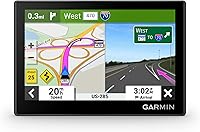
Garmin DriveSmart 66 vs 76: Which One? (October 2026)
In the Garmin DriveSmart 66 vs 76 choice, pick the 66 for a crowded dashboard or the 76 for a larger map view. Choose by mounting space and reading comfort, since their core navigation and connected features overlap.
On this page (11 sections)
- Garmin DriveSmart 66 vs 76: what actually changes?
- Which model suits your driving and dashboard?
- How do you check the fit before buying?
- What navigation features do both models share?
- What requires a phone, and what uses Wi-Fi?
- How should you set up a DriveSmart before the first trip?
- How do you keep the screen and mount usable?
- Which buying and use mistakes should you avoid?
- When does the Garmin DriveSmart 86 make sense?
- Which Garmin DriveSmart should you buy?
- Related reading
Choose the Garmin DriveSmart 66 for a crowded dashboard or the DriveSmart 76 for a larger map view. In the Garmin DriveSmart 66 vs 76 decision, mounting space and reading comfort matter more than differences in their shared navigation tools.
The 66 is the sensible starting point if you want a separate route screen without filling the dash. Move to the 76 when its larger display solves a clear need, such as a mounting position farther from your seat.

Garmin DriveSmart 66 vs 76: what actually changes?
The main difference is a 6-inch screen on the 66 versus a 7-inch screen on the 76. Both have high-resolution displays, and their core navigation and phone-linked features overlap.
Screen measurements run diagonally, so they don't tell you how much dashboard width the whole device needs. Compare the body dimensions before choosing a mounting spot.
The 66 measures 6 × 0.7 × 3.4 inches, while the 76 measures 6.81 × 0.75 × 3.9 inches, in length, width and height. The larger model therefore needs more clearance around the screen, too.
The 66 weighs 6.17 ounces, compared with 8.45 ounces for the 76. That difference matters less than a secure mount and a clear view, but the smaller unit is lighter to move between cars.
Don't choose the 76 expecting a separate tier of map coverage or live services. Its strongest reason to buy is the extra viewing area.
Which model suits your driving and dashboard?
Choose the 66 for a compact setup and the 76 when you have space and want a larger map view. Match the device to your normal seating position rather than judging it close up.
Garmin DriveSmart 66 vs 76 for everyday driving
The 66 suits a driver who wants a dedicated GPS beside existing dashboard controls. It's a practical choice when a larger device would crowd a vent, overlap an infotainment screen or sit too high.
It also makes sense if you often remove the GPS after parking. A smaller body gives you less to handle and store, though you'll still need a secure place for the device and cables.
Skip the 66 if you would need to lean forward or keep looking at the map to read it. Saving dashboard space isn't useful if the screen ends up too far away for comfortable viewing.
The 76 suits drivers whose safe mounting position puts the GPS farther from their eyes. Consider it when the larger display has a clear purpose and the surrounding space is open.
Skip the 76 if its body forces an awkward placement. A larger screen that blocks a control or narrows your road view is the wrong fit for that car.
For someone choosing a device around reading comfort and simpler daily use, our car GPS guide for seniors and older drivers covers those priorities in more detail.
How do you check the fit before buying?
Use a paper outline of each device's full body to compare possible locations while parked. Include space around the outline for the mount, power connection and your hand.
Sit in your usual driving position with the seat and steering wheel already adjusted. Check the outline from there, since a spot that looks clear from the passenger seat may obstruct something for the driver.
Look beyond the screen itself. The mount can change how far the GPS projects from the surface, and the cable needs a route that won't cross controls or hang near pedals.
Keep the device clear of airbags, instruments and the road view. Follow the vehicle's guidance and applicable mounting rules when choosing between dashboard and windshield locations.
A paper outline checks physical fit, not display readability. If you can view either model in person, judge it from a similar distance to your intended mounting position.
For a shared car, repeat the fit check with the other driver's seat position. A placement that works for one person can leave another driver looking around the device or reaching too far.
What navigation features do both models share?
Both include North America map updates, Garmin voice assist and driver alerts. Those shared tools make physical fit a stronger reason to choose between them than a feature checklist.
Garmin voice assist lets you ask for directions to places you want to go. Plan the destination before moving, then use voice requests only when conditions allow you to stay focused on driving.
Driver alerts cover situations such as school zones, sharp curves and speed changes. Treat them as extra information rather than permission to rely less on road signs or your own judgment.
Both models also include the HISTORY database of notable sites, a U.S. national parks directory and millions of Foursquare points of interest. These tools suit road trips where finding a stop is part of the journey.
Use points of interest to build a shortlist before departure. Check a stop's current opening hours and access arrangements separately rather than assuming a saved destination means it will be open when you arrive.
For a wider overview of dedicated GPS options, see our car GPS buying guide. If you're comparing other models for your vehicle, our best car GPS picks cover additional choices.
What requires a phone, and what uses Wi-Fi?
Live services need a compatible smartphone running the Garmin Drive app, while built-in Wi-Fi handles map and software updates without a computer. These are separate connections with different jobs.
The phone-linked services include live traffic, fuel prices, parking, weather and smart notifications. Buying the larger model doesn't remove the phone requirement for those features.
Hands-free calling requires a compatible smartphone paired through Bluetooth. Set up calling while parked, and check that the intended phone is connected before you depend on it during a trip.
Both models include Alexa Built-in, which also requires the Garmin Drive app running on a compatible phone. Garmin advises using it only when safe and keeping attention on driving.
If your aim is to avoid using a smartphone altogether, decide which features you actually need before buying. Neither model is a match for someone who expects all of these live services without a phone connection.
Think about notifications separately from route guidance. Enable only the ones you need so the dedicated navigation screen doesn't become another source of avoidable interruptions.
How should you set up a DriveSmart before the first trip?
Complete updates, mounting and phone pairing while parked, with enough time to resolve problems before departure. A rushed setup makes it easier to overlook the cable route or select the wrong destination.
- Read the mounting instructions. Both models include a vehicle suction cup mount, traffic receiver/vehicle power cable, USB cable and documentation.
- Choose the position. Check the screen from your normal seat before securing the mount.
- Arrange power. Keep the cable away from pedals, steering movement, controls and airbag areas.
- Connect to Wi-Fi. Complete available map and software updates before setting off.
- Pair your phone if needed. Follow the Garmin Drive app instructions for the connected features you plan to use.
- Enter a familiar destination. Review the selected place and route while stationary.
Both include a dual USB charger with an extra charging port for another device. Plan where the phone will sit so its charging cable doesn't pull across the GPS mount.
Before a longer journey, learn how to change or cancel a destination while parked. Knowing the basic controls reduces the urge to search through menus at a junction.
For an unfamiliar destination, confirm the actual entrance as well as the street address. Large sites can have separate visitor, delivery and parking entrances, so the first address match may not be the best arrival point.
How do you keep the screen and mount usable?
Keep the screen clean, the mount secure and the cable free from strain. These simple checks help preserve the setup you chose rather than letting the device drift into an awkward position.
Follow Garmin's care instructions for the device and mount. For routine dust and fingerprints, use a soft cloth and avoid spraying liquid directly onto the screen or into openings.
Check that the mounting surface is clean before attaching a suction mount. If the device starts to sag or move, stop somewhere safe and correct the mount rather than adjusting it while driving.
Inspect the power cable where it bends near the device and vehicle connection. Leave enough slack for normal movement without creating a loop that can catch a hand or interfere with controls.
Remove the GPS from view when leaving the car unattended. Store it where it won't be crushed by other items, and follow the manual's temperature limits rather than leaving it in strong heat.
Before a major trip, make time for updates and a quick check of your saved destinations. Do this ahead of departure so an update doesn't compete with your planned leaving time.
Which buying and use mistakes should you avoid?
Avoid buying by screen size alone or assuming the larger model adds a different class of routing. These mistakes can leave you with the wrong device even when it fits physically.
- Choosing the largest screen automatically. Start with the safest usable mounting position, then choose the screen that suits it.
- Confusing Wi-Fi updates with live services. Plan for the app connection if traffic, weather or parking information matters to you.
- Expecting alerts to replace observation. Posted signs, road conditions and your own judgment still guide your driving.
- Changing settings in motion. Pull over safely before working through menus or correcting an address.
- Buying a car GPS for specialist vehicle needs. Check the routing requirements of your vehicle before choosing either model.
Both are car GPS navigators. A larger screen doesn't mean a device can plan around a truck's height, weight or other restrictions.
If those limits matter, start with our truck GPS vs car GPS guide before narrowing your choice by display size. Choosing the correct type of navigator comes before choosing its screen.
Also avoid replacing a device solely because its location appears wrong once. Check the situation first, since buying a larger screen won't address the cause of a position error.
When does the Garmin DriveSmart 86 make sense?
Consider the DriveSmart 86 for its 8-inch dual-orientation display when you have ample mounting room. It offers another screen layout choice rather than a reason to abandon careful fit checks.
It measures 7.6 × 0.77 × 4.7 inches in length, width and height and weighs 10.41 ounces. It's the largest and heaviest model here.
Its core navigation and connected tools overlap with the smaller models. Choose it because the display size and orientation suit your setup, not because you expect specialist truck or RV routing.
Check each orientation you plan to use against the available space. Leave room for the mount and cable, and make sure the larger body doesn't cover nearby controls.
Skip the 86 if the 76 already gives you the viewing area you want. Extra size is only useful when the device still fits comfortably within your driving view.
Which Garmin DriveSmart should you buy?
For Garmin DriveSmart 66 vs 76, choose the model that works from your safe mounting position: the 66 for tighter space, or the 76 when a larger map view serves a clear need.
If both fit, make reading comfort the deciding factor. If neither fits without blocking your view or controls, reconsider the mounting arrangement before ordering either one.
Choose the 86 only when you specifically want its larger, dual-orientation display and have checked the room it needs. Across all 3, confirm that you're comfortable using a compatible phone for the live services you want.
For help with an incorrect position or map display, see why a car GPS may show the wrong location. The Garmin DriveSmart 66 review has more detail on the smaller model.
For an overview of dedicated navigation devices for different vehicles, visit our GPS navigator buying guide.
Related reading
Use the DriveSmart 66 review for a closer look at the compact choice. The other guides help you compare alternatives or resolve a location problem before replacing your GPS.
- Garmin DriveSmart 66 review
- Best car GPS navigators
- GPS navigators for cars, trucks and RVs
- Why a car GPS may show the wrong location
Frequently asked questions
Is the Garmin DriveSmart 76 better than the 66?
The DriveSmart 76 is the better fit if you want a larger map view and have a clear place to mount it; the 66 suits tighter dashboards. Their core navigation and connected features overlap, so choose the device you can read comfortably without blocking your view or controls.
Do the Garmin DriveSmart 66 and 76 have the same features?
They share core features, including North America map updates, Garmin voice assist, driver alerts, Wi-Fi updates and road-trip tools; both support hands-free calling with a compatible Bluetooth-paired phone. Live traffic, fuel prices, parking, weather and smart notifications require a compatible smartphone running the Garmin Drive app.
What is the screen size difference between Garmin DriveSmart 66 and 76?
The DriveSmart 66 has a 6-inch display, while the DriveSmart 76 has a 7-inch display; those measurements describe the screens diagonally, rather than the full device width. Compare the body dimensions and allow room for the mount and cable before deciding which fits your car.
Is the Garmin DriveSmart 86 worth considering?
The DriveSmart 86 is worth considering if you want an 8-inch dual-orientation display and have enough mounting space; its main benefit here is the larger screen and choice of orientation. Check the full device footprint from your normal driving position before choosing it over the smaller models.