Why Does My Car GPS Show the Wrong Location?
If your car GPS shows the wrong location, start by checking satellite reception in an open area while safely parked. A drifting marker suggests a signal problem; an old road layout or misplaced destination pin calls for a different fix.
On this page (9 sections)
- Why does a car GPS show the wrong location?
- What should you check before changing settings?
- Is the position wrong, or is the map out of date?
- Could the destination or vehicle settings be wrong?
- When should you update maps and software?
- Which Garmin suits you if you need a replacement?
- How should you set up and care for a navigator?
- What if the GPS still shows the wrong place?
- What should you do when your car GPS shows the wrong location?
If your car GPS shows the wrong location, check satellite reception first, then separate a misplaced position marker from an outdated map or wrong destination pin. Those problems can look similar on the screen, but each needs a different fix.
A replacement isn't the first step. Park safely, let the device find its position outdoors, and note exactly what looks wrong before changing settings or buying another navigator.
For help choosing a device once you've narrowed the cause, see our guide to GPS navigators for cars, trucks, and RVs.
Why does a car GPS show the wrong location?
Blocked or reflected satellite signals can shift your position marker, while old maps can show roads that no longer match your surroundings. A wrong destination pin can also send you somewhere unexpected even when your current position is correct.
Buildings, bridges, trees and other structures can block or reflect signals, as GPS.gov explains in its guide to GPS accuracy. A marker may drift or appear on a nearby parallel street when reception is poor.
Map errors behave differently. Your marker might move along the correct path while the screen shows an old junction, a missing road or an address in the wrong place.
When your car GPS shows the wrong location only at startup
A navigator may need time to find its position after being switched on, especially after traveling a long distance while off. Let the marker settle outdoors before treating its first displayed position as a fault.
A map centered on your previous stop doesn't always mean the device thinks you're still there. Check that you're viewing your current position rather than a browsed map or saved destination.
What should you check before changing settings?
Start with a clear view of the sky and a known location. Checking the device while parked makes it easier to see whether the marker settles, drifts or stays frozen.
- Park away from garages, covered parking, tall buildings and dense tree cover.
- Check the manual for a suitable mounting position that keeps your road view clear.
- Wait for the device to acquire its position, then compare the marker with your surroundings.
- Confirm that the screen is showing your current location.
- Restart the navigator if the marker remains frozen or far away.
Don't repeatedly restart it while it's still acquiring satellites. Follow the manual's guidance rather than expecting every device to find its position immediately.
Check the power cable and connections, too. If the unit keeps shutting down or restarting, resolve that problem before judging its location accuracy.
Is the position wrong, or is the map out of date?
Watch what is misplaced: your marker, the road drawing or the destination. This distinction tells you whether to focus on reception, map updates or the address you entered.
| What you see | What to check first |
|---|---|
| Marker drifts while you're parked | Satellite reception and mounting position |
| Marker appears on a nearby parallel street | Obstructions and reflected signals |
| Marker follows your travel but a junction looks old | Map updates |
| Current position looks right but the route ends elsewhere | Destination address and pin |
| Map points north while you're facing another direction | Map orientation before assuming a location fault |
These are clues, not a diagnosis. Compare behavior in an open area and near the place where the problem first appeared.
A phone app can provide another reference, but devices may use different location sources and settings. Agreement between them is useful; disagreement alone doesn't identify which one is wrong.
Always follow road signs and traffic rules when they conflict with directions. Pull over before inspecting the map or changing the route.
Could the destination or vehicle settings be wrong?
A wrong destination changes where you're sent, even when the navigator knows where you are. Check the full address, town and arrival pin before changing location settings.
Duplicate street names, a business with several branches or a pin on the wrong side of a large property can explain an unexpected route. Check that the endpoint matches the entrance you intend to use.
Route preferences can also explain an unusual journey. An avoidance setting may change the chosen roads, but changing it won't repair a drifting position marker.
If your device supports vehicle profiles, check that the right profile is selected. Our guide to truck GPS vs. car GPS explains when vehicle-specific routing matters, though posted restrictions still take priority.
When should you update maps and software?
Install map updates for outdated roads and addresses, and check software updates when troubleshooting repeated faults. Use the device maker's instructions for your exact model.
Before starting, allow enough time to finish and use a reliable connection. Follow the power instructions and don't unplug the device midway through an update.
Afterward, check the same known location again. Changing the mount, route settings and software all at once makes it harder to identify what helped.
An update won't remove a building that blocks reception. If the marker is wrong only inside a garage, buying a newer navigator may leave you with the same problem.
Which Garmin suits you if you need a replacement?
Choose by screen fit, update method and daily use, after checking your current device. These 3 models offer different screen sizes, but none should be bought on the assumption that a larger display fixes reception.
Garmin DriveSmart 66 for drivers who want Wi-Fi updates
The Garmin DriveSmart 66 combines a 6-inch high-resolution display with North America map updates. Its built-in Wi-Fi supports map and software updates without a computer, making it a useful choice if computer-based maintenance puts you off updating.
Choose it if you want a dedicated map screen plus Garmin voice assist. Hands-free calling requires a compatible smartphone paired through Bluetooth, while live traffic, parking and weather require a compatible phone running the Garmin Drive app.
Skip it if your current navigator becomes accurate as soon as you leave a covered parking area. That pattern points toward reception conditions, so replacing the device solely for its update features misses the cause.
Before ordering, check where the screen and mount would sit from your normal driving position. Our Garmin DriveSmart 66 review covers its features in more detail.
Garmin DriveSmart 76 for drivers who need a larger map
The Garmin DriveSmart 76 suits drivers who prefer a 7-inch high-resolution display. It also includes North America map updates and Wi-Fi updates without a computer.
Choose it when map readability is your main reason to replace a smaller navigator. Garmin voice assist and driver alerts add convenience, but the larger screen is the clearest reason to choose it over the 66.
Skip it if mounting space is tight or the display would block your view. A larger screen needs a suitable position within easy sight, rather than a cramped spot that forces awkward glances.
Compare the mounting space and screen choices in our Garmin DriveSmart 66 vs. 76 guide.
For readers choosing around visibility and ease of use, our guide to car GPS for seniors and older drivers adds useful buying context.
Garmin Drive 53 for drivers who prefer a smaller screen
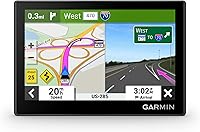
The Garmin Drive 53 has a 5-inch glass capacitive touchscreen and includes detailed North America map updates. Choose it if you prefer a smaller map display and touch controls.
Its spoken turn-by-turn directions include Garmin Real Directions landmark guidance. It also shows food, fuel and rest areas along an active route, which helps when planning a stop without changing the trip's main destination.
Skip it if reading a smaller display is already your main complaint. Compact dimensions won't help if you need to lean forward or spend longer looking at the map.
Check its update instructions before choosing it for easier maintenance. Don't assume it uses the same Wi-Fi update process as the 2 DriveSmart models, and plan to use vehicle power for driving.
How should you set up and care for a navigator?
Set it up while parked, with the mount secure, the cable routed safely and the map visible from your normal seat position. Enter your destination before moving.
Check the mount's grip regularly and keep its contact surface clean according to its instructions. A slipping mount changes your viewing angle and can pull on the power cable.
Use a soft cloth and the maker's cleaning guidance for the screen. Keep liquids out of ports, avoid abrasive cleaners and follow storage temperature limits when leaving the car.
For phone-connected features, complete pairing before the trip. Losing a traffic or weather connection doesn't by itself prove that the navigator's satellite position is wrong.
What if the GPS still shows the wrong place?
Contact device support if the marker remains wrong in open areas after a restart and available updates. Record whether it happens everywhere, only at startup or on particular roads.
Give support the model, software version and a clear example of the mismatch. A screenshot taken while parked can show whether the issue affects the position marker, map or destination.
Use a factory reset only when the device instructions or support recommend it. Write down saved places and preferences first, since a reset may erase them.
If repair or replacement becomes necessary, compare the best car GPS navigators and our car GPS buying guide around your actual needs.
What should you do when your car GPS shows the wrong location?
Fix the cause before choosing another screen. Reception problems call for an open-sky check, old road layouts call for map updates, and wrong arrival points call for checking the destination.
Choose the DriveSmart 66 for Wi-Fi upkeep with a midsize display, the DriveSmart 76 when a larger map is your priority, or the Drive 53 when you prefer a smaller touch-controlled unit.
If your car GPS still shows the wrong location in clear conditions, get support before replacing it. Use our GPS navigator guide to match any replacement to your vehicle and driving routine.
Frequently asked questions
Why is my car GPS showing me on the wrong road?
Weak or reflected satellite signals can place your marker on a nearby road, especially around tall buildings or covered parking areas. Park outdoors with a clear view of the sky and let the position settle, then check for map updates if the road layout itself looks wrong.
How do I reset my car GPS location?
Restart the device while safely parked outdoors, then give it time to find satellites before entering a route. If the location stays wrong, follow the device maker's troubleshooting steps and check for updates before considering a factory reset, which may erase saved places and preferences.
Can an old map make my GPS show the wrong location?
An old map can show roads, exits or addresses in the wrong place even when the GPS position is accurate. Compare the marker with known surroundings, then update the maps if the road layout is outdated, remembering that an update won't remove buildings or other signal obstructions.