7 Best Car GPS Navigators (October 2026)
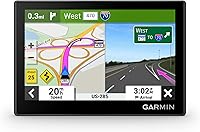
The best car GPS navigators include the Garmin DriveSmart 66 for most drivers, the Garmin DriveSmart 76 for easier map viewing, and the Garmin DriveSmart 55 for compact dashboards.
On this page (6 sections)
The best car GPS for most drivers is the Garmin DriveSmart 66 because it balances readable maps, voice destination searches and a manageable dashboard footprint. Choose the DriveSmart 76 if you need more viewing space, or the Drive 53 if compact, straightforward guidance matters most.
A dedicated navigator makes sense when you want directions on their own screen instead of sharing your phone with calls and other tasks. The key purchase decisions are screen fit, map upkeep and how much phone pairing you're willing to manage.
For a broader overview, read our GPS navigator buying guide. The car GPS category has more help with model comparisons and navigation problems.
Our picks at a glance
-
1

-
2
-
3

Which best car GPS pick fits your driving?
The DriveSmart 66 is the starting point for most buyers, while the other picks solve specific needs for screen space, simpler controls or charging searches. Choose the feature you'll use on ordinary trips before paying attention to occasional road-trip extras.
How we compared the best car GPS options
We compared screen size, body dimensions, map updates, voice controls and phone requirements. The scores reflect each model's fit for general car use, so a lower-ranked specialist can still be the better choice for your dashboard.
The larger models earn their place when the extra viewing area solves a real problem. Charging searches and screen orientation also matter more to some drivers than they do to the average car GPS buyer.
| Product | Best for | Display | Maps | Updates | Our score |
|---|---|---|---|---|---|
| Garmin DriveSmart 66 | most drivers | 6 in | North America updates included | Built-in Wi-Fi | 9.2 |
| Garmin DriveSmart 76 | easier map viewing | 7 in | North America updates included | Built-in Wi-Fi | 8.9 |
| Garmin DriveSmart 55 | compact dashboards | 5.5 in | Map updates included | Built-in Wi-Fi | 8.6 |
| Garmin Drive 53 | straightforward trips | 5 in | North America updates included | 8.5 | |
| Garmin DriveSmart 86 | flexible screen placement | 8 in, dual orientation | North America updates included | Built-in Wi-Fi | 8.4 |
| Garmin Drive 7.1 | EV road trips | 7.1 in ultrawide | North America | 7.7 | |
| Garmin Drive 8.8 | spacious vehicle cabins | 8.8 in ultrawide | North America | 7.2 |
Garmin DriveSmart 66
- 6-inch high-resolution display
- North America map updates
- Garmin voice assist
- Wi-Fi map and software updates
The middle ground for drivers who want voice destination searches and road-trip tools without a large screen dominating the dashboard.
Pros
- Voice destination searches
- Wi-Fi updates without a computer
- National parks and historic-site directories
Cons
- Live traffic and other connected tools require a compatible phone and Garmin Drive app
The DriveSmart 66 is the best starting point for mixed daily and road-trip use. Its 6-inch high-resolution display sits between the compact picks and the larger screens, while Garmin voice assist lets you ask for destinations.
Included North America map updates and Wi-Fi map and software updates make routine upkeep easier. You can update without a computer, which matters if complicated maintenance tends to get postponed.
Its trip tools include a U.S. national parks directory, a HISTORY database of notable sites and Foursquare points of interest. School-zone, curve and speed-change alerts add route awareness.
A compatible phone running Garmin Drive supplies live traffic, weather, parking, fuel information and notifications. Bluetooth phone pairing enables hands-free calling, while Alexa Built-in also needs the app.
Buy it if you want one navigator for errands, unfamiliar cities and longer drives. Skip it if reading a mid-size display requires leaning forward, or if a smaller unit would fit your car more comfortably.
Our DriveSmart 66 vs 76 comparison helps with the size decision, and the DriveSmart 66 review covers this model in more detail.
Garmin DriveSmart 76
- 7-inch high-resolution display
- North America map updates
- Voice assist
- National parks directory
Choose this over the 66 when a larger map is worth the extra dashboard space. Its core voice, update and road-trip tools are similar.
Pros
- More viewing area than the 66
- Voice assist and phone-paired calling
- Wi-Fi map and software updates
Cons
- Needs more mounting space than the 66
- Connected information requires phone pairing
The DriveSmart 76 is the better choice when map viewing space takes priority. Its 7-inch high-resolution screen gives you more room to view the route without moving to the largest models here.
It shares the 66's main approach: voice assist for destination searches, included North America map updates and Wi-Fi upkeep. The national parks directory, historic sites and other road-trip tools also carry over.
That makes this mainly a fit decision rather than a reason to expect a different kind of navigation. Choose it because the display is easier for you to read from your seat, rather than because the model number is higher.
Buy it if you frequently check unfamiliar intersections or prefer a larger map beside spoken instructions. Skip it if the mounting position would cover a vent, control or part of your road view.
Its connected services still involve a compatible phone, so allow time for pairing before the first trip. Use the DriveSmart 66 vs 76 comparison to decide whether the extra screen area earns its space.
Garmin DriveSmart 55
- 5.5-inch display
- Simple on-screen menus
- Wi-Fi map and software updates
- Garmin Traffic alternate routes
A compact choice for drivers who want simple menus while keeping voice activation, traffic route suggestions and wireless updates.
Pros
- Simple menus
- Compact body
- Voice activation and phone-paired calling
Cons
- Less map viewing area than the larger DriveSmart models
The DriveSmart 55 suits drivers who want a compact device with voice features. Its 5.5-inch display and simple on-screen menus make it worth considering when a larger navigator would crowd the cabin.
The body measures 5.4 inches long by 3 inches high. Those dimensions are useful when comparing physical fit, because screen diagonal alone doesn't tell you how much dashboard space a device occupies.
Garmin Traffic suggests alternate routes, and map updates are included. Built-in Wi-Fi handles map and software updates without a computer, while a compatible smartphone can pair for hands-free calling.
Choose this model if you want to keep the device small without making touch input your only way to interact. Its combination of compact size, voice activation and simple menus is the main reason to choose it.
Skip it if you already struggle to read a smaller navigation display. Moving the unit closer must still leave a safe mounting position and a clear road view.
Garmin Drive 53

- 5-inch glass touchscreen
- Spoken landmark guidance
- North America map updates
- Food, fuel and rest stops along the route
A compact navigator for drivers focused on spoken directions and useful stops along the route. Landmark guidance adds context to turn instructions.
Pros
- Spoken directions using landmarks
- Included map updates
- Route stops and national parks directory
Cons
- Smallest display in this roundup
The Drive 53 is the straightforward pick for spoken guidance and planned stops. Its 5-inch glass touchscreen is the smallest in this group, making it a sensible candidate when mounting space is tight.
Garmin Real Directions uses landmarks in spoken turn instructions. That gives you another reference alongside the map, though you should still check signs and the actual road layout.
Food, fuel and rest areas appear along the active route, along with upcoming cities and milestones. These tools suit drivers who want to plan a break without starting a separate search from scratch.
Included North America map updates and a U.S. national parks directory support trips beyond familiar roads. Choose it for core directions and useful route information rather than for an extensive phone-connected workflow.
Skip it if spoken instructions aren't enough and you need a large map to follow comfortably. Also choose a voice-focused model if entering destinations by spoken command is a priority, rather than assuming spoken directions mean voice input.
Garmin DriveSmart 86
- 8-inch dual-orientation display
- North America map updates
- Voice assist
- Wi-Fi updates
The large-screen DriveSmart choice for drivers who want portrait or landscape viewing. Check both orientations against your car's controls and sight lines.
Pros
- Portrait or landscape viewing
- Voice destination searches
- Wi-Fi map and software updates
Cons
- Large body needs careful mounting
- Live information requires a compatible phone and app
The DriveSmart 86 is the large-screen choice for portrait or landscape viewing. Its 8-inch dual-orientation display gives you a way to adapt the screen layout to the available mounting space.
The body measures 7.6 inches long by 4.7 inches high. Make a paper outline and check both orientations from the driver's seat before choosing, allowing extra room for the mount and cable.
You retain the familiar DriveSmart tools, including voice assist, Wi-Fi updates and included North America map updates. Phone pairing supplies live information, while the road-trip directories help with places to visit.
Buy it if a large map is useful and you have a clear, stable mounting position. A wide open dashboard or an appropriate lower mounting area makes more sense than squeezing it between controls.
Skip it if either orientation creates an obstruction. Rotating a large screen changes where it takes up space, but it doesn't reduce the total amount of device you need to accommodate.
Garmin Drive 7.1

- 7.1-inch ultrawide display
- Upcoming traffic signs and lights
- EV charging search with power filters
- Phone-to-navigator destination sharing
A useful fit for drivers who want charging-station searches and phone-based trip preparation in a lower-profile, ultrawide format.
Pros
- Charging searches filtered by power
- App-based live charger availability
- Destinations can be sent from a phone
Cons
- Live services require app pairing
- Confirm map-update terms before choosing
The Garmin Drive 7.1 is the pick for charging searches and phone-based trip preparation. Its low-profile, 7.1-inch ultrawide display suits buyers who prefer a wide map layout.
It finds EV charging stations and lets you filter by charging power. Garmin Drive app pairing adds live charger availability, plus live traffic, weather and fuel information.
You can search for a destination on your smartphone and send it to the navigator. That is useful when you're planning a stop from an address in a message or a place you've already found on your phone.
Upcoming traffic signs and lights provide another layer of route information. Voice destination commands are also available, giving you an alternative to typing.
Choose it if those trip tools will see regular use. Skip it if your main need is a conventional map display and you don't expect to use charging searches or phone destination sharing.
Before buying, confirm map-update terms. For EV trips, separately check connector compatibility, site access and a backup charging stop.
Garmin Drive 8.8

- 8.8-inch ultrawide display
- Upcoming traffic signs and lights
- EV charging station search
- Voice destination commands
Choose this when the largest map display here fits your cabin comfortably. It offers the same core trip and charging tools as the smaller Drive 7.1.
Pros
- Largest screen in this roundup
- Charging-station power filters
- Phone-to-navigator destination sharing
Cons
- Wide body can crowd the mounting area
- Confirm map-update terms before choosing
The Garmin Drive 8.8 is the choice for maximum viewing area in a roomy cabin. Its 8.8-inch ultrawide display is the largest here, but its size needs to solve a viewing need.
The body is 8.6 inches wide, so check the full mounting area rather than comparing screen diagonals. Include room for the supplied windshield mount, and assess the road view from your normal seating position.
Its core tools match the smaller Drive 7.1: charging searches with power filters, upcoming signs and lights, voice commands and phone-to-navigator destination sharing. Live information requires Garmin Drive app pairing.
Buy it if you want the wide layout and can mount it without crowding the cabin. A passenger should also be able to move normally without bumping the unit or its cable.
Skip it if the smaller ultrawide model already meets your viewing needs. The larger screen doesn't add a separate set of charging or trip-planning features, and map-update terms still deserve a check.
How do you choose a car GPS that fits your car?
Start with a clear mounting position and readable directions, then compare maps and connected tools. A feature-rich navigator is a poor match if you can't place it comfortably.
Measure the device, not just the screen
Screen sizes describe the diagonal, while body dimensions determine physical fit. Cut a paper rectangle to the device's measurements and hold it near the intended location while the car is parked.
Sit normally and check the windshield, mirrors, instruments and nearby controls. Allow space for the mount behind the device and the cable below or beside it.
A larger screen also won't solve every reading issue. Viewing distance, reflections and the angle of the mount all affect how comfortably you can see route information.
Match controls to the way you'll enter destinations
Spoken directions and voice destination entry are different features. The first reads guidance aloud; the second lets you tell the navigator where to go.
Voice input is useful if you dislike entering addresses on a mounted touchscreen. Still, prepare complex destinations while parked, and pull over if a command needs repeated corrections.
Touch controls can be enough when you usually enter one destination before leaving. Don't buy extra voice features just because they sound useful if you rarely change routes during a trip.
Separate map coverage from live information
Map coverage, map updates and live traffic solve different problems. Coverage defines the mapped region, updates refresh stored road information, and live services report changing conditions.
Check your travel region before buying, especially if a trip extends beyond North America. Don't assume Wi-Fi connectivity alone confirms an included map-update plan.
Live information can also involve your phone's mobile connection and app permissions. If you prefer leaving your phone disconnected, choose based on the navigation functions you'll actually use without those services.
Choose the routing category before the display size
A car navigator isn't automatically suitable for a vehicle with height, weight or access restrictions. A larger screen or a truck compatibility label doesn't prove that routes account for those limits.
If your trips involve a large truck or RV, resolve that routing need first. Our truck GPS vs car GPS guide explains the distinction.
What setup should you finish before the first drive?
Finish updates, mounting, power and a saved destination before leaving home. This keeps the first unfamiliar junction from becoming a lesson in the navigator's menus.
Update and check the route while parked
Follow the device's instructions to install available map and software updates. Leave enough time for the process, and use the recommended power connection so an update isn't interrupted.
Enter a familiar destination first and review the route overview. Check that the result is the right town, street and entrance, especially when several places share a name.
For a hospital, park or large shopping area, identify the entrance you actually need. A correct street address can still lead to the wrong side of a large property.
Secure the mount and route the cable
Choose a mounting position that follows local requirements and leaves the road view clear. Keep the device and cable away from airbag areas, pedals and controls.
Prepare the mounting surface according to the mount instructions, then check that the attachment holds before driving. Set the angle while seated normally rather than adjusting it from outside the car.
Use the supplied vehicle power equipment as directed, and route the cable with enough slack for normal movement. Don't plan a long drive around the navigator's internal battery.
Pair only the phone features you need
If you want live services, install Garmin Drive and complete the required pairing steps while parked. Check compatibility and the app permissions needed for the functions you plan to use.
Phone calling and app-based services may involve separate setup steps. A successful Bluetooth connection doesn't mean every connected function is ready.
Set a comfortable spoken-guidance volume and review notification choices. Keep alerts useful enough to notice without turning every phone event into another interruption.
How can you use a car GPS well on longer trips?
Use a reviewed route, planned breaks and current road signs together. The navigator handles directions, while you remain responsible for choosing a suitable road and making safe turns.
Plan stops before the fuel or charge gets low
Choose a main stop and a fallback before starting a remote stretch. A food, fuel or charging marker is a search result, so confirm the details that determine whether the stop will work.
For EV travel, charging power is only part of the decision. Check the connector, access hours and a second reachable site instead of depending on one availability check.
National parks can have several entrances and seasonal access limits. Confirm the correct entrance and current park access before accepting the first route to a park name.
Handle missed turns without rushing
If you miss a turn, keep driving safely and allow the route to change. Don't brake suddenly, reverse or cross lanes just to follow an instruction.
Road signs and temporary traffic controls take priority over a stored map. When a route seems wrong, stop somewhere safe before checking the destination or changing settings.
Repeated position errors need a different approach from a single missed turn. Our guide to why a car GPS shows the wrong location helps you work through that problem.
Keep the screen, mount and maps ready
Clean the display with a soft cloth using the care method Garmin recommends. Avoid abrasive cleaners, and keep liquids away from ports.
Check the mount periodically, especially after large temperature changes or moving the device between cars. Remove the navigator from view when parked and follow its storage temperature guidance.
Review map and software updates before a major trip. Regular upkeep is easier than discovering an overdue update when you're already trying to leave.
Which mistakes should you avoid when buying a car GPS?
Avoid buying by screen size alone or assuming every Garmin has the same connections. Most mismatches come from choosing features before checking how the navigator will fit into everyday driving.
- Choosing the largest device automatically: extra viewing area helps only if you can mount it clearly and read it comfortably.
- Confusing Wi-Fi with live traffic: wireless updates and phone-connected traffic are separate functions.
- Treating destination search as route planning: check entrances, planned stops and the route overview before setting off.
- Expecting voice commands to remove distraction: repeated corrections still take attention, so make changes while parked.
- Assuming charging filters confirm suitability: verify the connector and access details for your vehicle.
- Buying car guidance for restricted vehicles: confirm routing for your vehicle's limits rather than relying on screen size or mounting fit.
A phone map may already meet your needs if you're comfortable with its display and setup. Buy a dedicated navigator because a separate guidance screen solves a real problem in your car.
Which best car GPS should you buy?
Choose by the limitation you need to solve. A crowded dashboard, hard-to-read map and regular charging stops point toward different navigators.
Pick the DriveSmart 66 when you want a balanced everyday choice. Move to the DriveSmart 76 when the extra map area matters, or the DriveSmart 86 when you need a large screen with flexible orientation.
Choose the DriveSmart 55 for compact size with voice features, and the Drive 53 for straightforward spoken guidance and route stops. Neither is the right shortcut if you already find smaller displays difficult to read.
The Drive 7.1 makes sense for charging searches and phone destination sharing. Choose the Drive 8.8 only when its larger ultrawide layout earns the extra cabin space.
Before ordering the best car GPS for your needs, check the mounting outline from your seat and decide which phone services you'll use. If you're helping an older driver choose, our car GPS options for seniors offers more focused advice.
Our top 3 picks at a glance
-
1
-
2
-
3
Frequently asked questions
What size car GPS screen should I choose?
Choose the smallest screen you can read comfortably from your normal driving position; a larger display deserves consideration if you struggle to see route details, but measure the entire device and mount first. Leave a clear view of the road, mirrors, instruments and controls rather than choosing by screen diagonal alone.
Do Garmin car GPS navigators need a phone?
A phone is needed for certain connected services, rather than for every navigation task; the DriveSmart 66, 76 and 86 use Garmin Drive app pairing for live traffic and other information. The Drive 7.1 and 8.8 also use app pairing for live services and sending destinations from your phone.
Do these car GPS units include map updates?
The DriveSmart 66, 76, 86 and Drive 53 include North America map updates, and the DriveSmart 55 includes map updates too; all 4 DriveSmart models here support Wi-Fi map and software updates without a computer. Confirm map-update terms for the Drive 7.1 and 8.8 before choosing either model.
Can a car GPS help on road trips?
Yes, a dedicated navigator can keep directions visible while helping you plan stops; depending on the model, these picks include national parks directories, historic sites, charging searches or food and fuel stops. Save your main destination before leaving, then review stops while parked so trip planning doesn't interrupt your driving.
Can I use one of these car GPS units in a truck or RV?
Don't assume a car navigator accounts for your vehicle's height, weight or road restrictions; a screen that fits a truck cab isn't proof of truck-specific routing. If clearance or access limits affect your trips, choose around those routing needs first and screen size second.