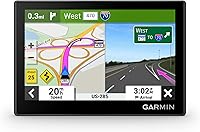
Garmin DriveSmart 66 GPS Review: Worth It? (October 2026)
Choose the Garmin DriveSmart 66 for a mid-size car GPS with voice assist and phone-linked trip tools. Pick the DriveSmart 76 for easier screen viewing or the Drive 53 for compact, touch-controlled route guidance.
On this page (9 sections)
- Who should buy the Garmin DriveSmart 66?
- How do the DriveSmart 66, 76 and Drive 53 compare?
- How should you choose the screen and mounting position?
- Which features need your phone?
- How useful are the road trip tools and driver alerts?
- How should you set up the DriveSmart 66 before a trip?
- How do you update and care for the navigator?
- Which common mistakes should you avoid?
- Should you choose the Garmin DriveSmart 66 or an alternative?
The Garmin DriveSmart 66 is a good fit if you want a dedicated car GPS with voice assist and phone-linked trip tools without choosing the largest screen here. Buy it for the features you'll use on regular drives, especially destination requests and live information through your phone.
Choose the DriveSmart 76 if a larger map view matters more than mounting space. The Drive 53 suits drivers who prefer a compact navigator for spoken directions and planned stops.
Who should buy the Garmin DriveSmart 66?
The DriveSmart 66 suits drivers who want a separate navigation screen and will connect their phone for extra services. It's especially useful for road trips where finding a stop, checking conditions and keeping directions visible are all part of the journey.
Garmin DriveSmart 66

- 6-inch high-resolution display
- North America map updates
- Voice assist and phone-paired Bluetooth calling
- Wi-Fi map and software updates
Choose this mid-size navigator if you'll pair your phone for live information and use voice assist to request destinations.
Pros
- Garmin voice assist for destination requests
- Map and software updates over Wi-Fi
- Alerts for school zones, sharp curves and speed changes
- National parks directory and HISTORY notable sites
Cons
- Live services and Alexa require a compatible phone running Garmin Drive
- Less screen space than the DriveSmart 76
Its appeal is the mix of destination search, trip information and a mid-size display. A separate navigator also lets you give route guidance a fixed place in the car instead of repeatedly moving your phone between uses.
That doesn't make it an automatic upgrade for every driver. If your current navigation setup is easy to read and already handles your trips well, identify a specific benefit before adding another device and power cable.
When is the Garmin DriveSmart 66 the right fit?
Choose it when voice destination requests and connected trip information solve a regular need. Drivers who take unfamiliar routes or plan stops during longer journeys have more reason to use those tools than someone repeating the same short commute.
It's also a sensible middle choice when a smaller navigator feels cramped but a larger one would crowd the mounting area. Decide from your seated view, since a screen that looks large on a desk can feel different across a dashboard.
Skip it if you want all its live services without involving a smartphone. Also look elsewhere if your vehicle needs routes based on truck or RV restrictions; this is a car navigator, so start with our truck GPS vs car GPS guide for that decision.
How do the DriveSmart 66, 76 and Drive 53 compare?
The main choice is screen size first, then how you want to interact with the navigator. The 2 DriveSmart models share the connected features discussed here, while the Drive 53 centers on touch controls and spoken guidance.
| Model | Screen | Choose it for | Skip it if |
|---|---|---|---|
| Garmin DriveSmart 66 | 6 inches | Connected trip tools in a mid-size body | You want the largest map view |
| Garmin DriveSmart 76 | 7 inches | More screen space at your chosen mounting position | Your dashboard or windshield area is tight |
| Garmin Drive 53 | 5 inches | Compact route guidance with touch controls | Voice destination requests are a priority |
All 3 include North America map updates. That makes screen placement and everyday use more useful deciding factors than map coverage within this group.
DriveSmart 76: choose it for viewing comfort
The DriveSmart 76 is the better fit when the navigator must sit farther from your seat or you prefer a larger map view. Its extra screen space is the reason to choose it over the 66, rather than expecting a different set of core connected tools.
Skip it if its body would block your view or force an awkward mounting position. Our Garmin DriveSmart 66 vs 76 comparison focuses on that size decision.
Drive 53: choose it for compact route guidance
The Drive 53 suits drivers who want spoken turn-by-turn directions with landmark guidance and are comfortable entering destinations by touch while parked. It shows food, fuel and rest areas along an active route, so a smaller device still offers useful stop planning.
Skip it if you already struggle to read smaller navigation displays or specifically want the DriveSmart voice features. Its compact body helps with placement, but that benefit only matters if you can comfortably use the screen.
How should you choose the screen and mounting position?
Choose the screen you can read from your normal driving position without leaning forward. A larger display helps only when you can mount it securely without covering the road, vehicle controls or important instruments.
Before ordering, make a paper outline of the device's body and hold it at your planned mounting spot while parked. The DriveSmart 66 measures 6 inches across, 3.4 inches high and 0.7 inches thick, so account for the whole unit rather than just its screen diagonal.
Check the view with your seat and steering wheel in their usual positions. Leave room to connect the power cable, and avoid placing the device where a passenger or loose item could catch the cord.
Glare matters too. A position that looks clear in a shaded driveway may reflect bright sky, so check the angle in daylight before settling on it.
For a driver who needs extra help with readability, use our car GPS guide for seniors to think through screen placement and controls. Age alone shouldn't decide the model; the seated view and comfort with its controls should.
Which features need your phone?
The DriveSmart 66 needs a compatible smartphone running Garmin Drive for its live information and Alexa Built-in. Those services include live traffic, fuel prices, parking, weather and smart notifications.
Hands-free calling uses compatible Bluetooth phone pairing. Treat calling and app-linked services as separate setup tasks, then confirm the functions you want while the car is parked.
Garmin voice assist lets you ask for directions to places. Alexa handles other requests, such as music, audiobooks and news, and Garmin says to use it only when safe while keeping your attention on driving.
Before buying for connected features, confirm that your phone can run the app and that you're willing to keep the connection available during trips. A navigator can have the right tools and still be a poor match if you don't want that routine.
After setup, review which notifications you want appearing on the navigation screen. Keep messages that help the trip and reduce distractions that compete with directions.
Don't assume a Wi-Fi connection replaces the phone requirement for live services. Wi-Fi serves a different role here: map and software updates.
How useful are the road trip tools and driver alerts?
The road trip tools are most useful for finding possible stops before choosing where to turn off your route. The DriveSmart 66 includes a U.S. national parks directory, the HISTORY database of notable sites and millions of Foursquare points of interest.
Use those tools to build a short list while parked, then check the destination itself before committing to a detour. A place appearing on a map doesn't confirm its current opening hours, access arrangements or suitability for your group.
For a park visit, choose the entrance or visitor center you actually need rather than accepting a broad destination name. Large destinations can have several access points, and the nearest point isn't always the right arrival spot.
The Drive 53 also includes a national parks directory. You don't need to choose the DriveSmart solely because parks are part of your vacation.
Driver alerts cover school zones, sharp curves and speed changes. They add reminders, but posted signs and the road ahead remain your guide, especially where temporary work changes normal traffic patterns.
How should you set up the DriveSmart 66 before a trip?
Set it up while parked, with time to update it and check your first route. The first morning of a long drive is a poor time to discover that pairing or mounting needs attention.
- Choose the mounting position. Clean the mounting surface as directed, secure the mount and check that the unit stays clear of your view and controls.
- Connect vehicle power. Route the cable away from pedals, steering movement and places where it could be pinched.
- Complete map and software updates. Follow the update prompts before entering your travel plans.
- Pair your compatible phone. Set up Bluetooth calling and Garmin Drive services you intend to use.
- Enter a familiar destination. Check the arrival point, route overview, voice volume and screen angle before driving.
The DriveSmart 66 includes a vehicle suction cup mount, traffic receiver/vehicle power cable, USB cable and documentation. Its dual USB charger leaves an extra charging port for another device, which is useful when the phone is part of your navigation setup.
Start with one route rather than changing every preference at once. Once the basic setup works, adjust the features that affect your normal drives.
If another person also drives the car, check the screen from their seat position too. A mount that works for one driver may need a different angle for the other.
How do you update and care for the navigator?
Use built-in Wi-Fi to update maps and software without a computer, and keep the navigator powered during the process. Complete updates before departure so there's time to resolve a connection problem.
The included North America map updates are useful only when you make updating part of your routine. Recheck your planned destination afterward, particularly before a trip to an unfamiliar area.
Use Garmin support for model-specific update and care instructions. Follow those directions if an update pauses or the device needs recovery, rather than repeatedly disconnecting it.
For everyday care, wipe the screen gently with a clean, soft cloth. Avoid abrasive materials and direct sprays, and follow Garmin's guidance before using a cleaning solution.
Check the mount and cable periodically, especially after moving the navigator between vehicles. Don't leave the unit in prolonged direct sun in a parked car, and store it securely when removing it.
Which common mistakes should you avoid?
Avoid buying by screen size alone or relying on a route without checking the arrival point. The right navigator needs to fit your car, your phone habits and the places you drive.
- Confusing spoken guidance with voice input. Hearing turn instructions and asking the device for a destination are different functions.
- Skipping the route overview. Confirm that the destination is in the right town and that the final approach makes sense.
- Mounting within reach but outside a clear view. Set the position while parked and keep the road visible.
- Changing settings while moving. Pull over safely before fixing a search result, pairing issue or route preference.
- Following an unsafe turn to stay on route. Continue safely if you miss an instruction instead of making a sudden maneuver.
A misplaced position marker is another reason to stop and check the device before continuing. Our guide to why a car GPS shows the wrong location explains the next checks to work through.
For a wider look at vehicle types and navigation needs, see our car GPS buying guide. Use that broader comparison if you haven't yet decided that a dedicated car navigator is right for you.
Should you choose the Garmin DriveSmart 66 or an alternative?
Choose the Garmin DriveSmart 66 if its mid-size body fits your car and you'll use the phone-linked tools. Before ordering, settle 2 things: where it will sit and whether you'll connect your phone on the trips that matter.
Move to the DriveSmart 76 if your planned mounting position calls for more screen space. Choose the Drive 53 if compact placement, spoken directions and touch entry meet your needs.
If none clearly improves your current setup, keep comparing by the problem you want to solve. Our best car GPS navigators guide is the next step for weighing other options by use.
Frequently asked questions
Is the Garmin DriveSmart 66 worth considering?
Yes, if you want a dedicated car navigator with voice assist and plan to use its phone-linked trip tools; the DriveSmart 66 balances screen size and mounting space. Choose the larger DriveSmart 76 for viewing comfort, or the compact Drive 53 when core route guidance covers your needs.
Does the Garmin DriveSmart 66 need a phone?
A compatible phone running Garmin Drive is required for live traffic, fuel prices, parking, weather, smart notifications and Alexa Built-in; hands-free calling requires compatible Bluetooth phone pairing. Choose it with that setup in mind if connected services are a main reason you're buying, and complete pairing before leaving.
What is the difference between the DriveSmart 66 and 76?
Screen size and mounting space are the clearest differences: the DriveSmart 66 has a 6-inch display, while the 76 has a 7-inch display and larger body. Both offer voice assist, Wi-Fi updates and phone-linked services; choose by what you can read comfortably from your normal driving position.
Is the Garmin DriveSmart 66 easy to update?
Built-in Wi-Fi lets you update maps and software without a computer; connect the navigator to a suitable network, keep power connected and follow Garmin's on-screen instructions. Allow time before departure rather than starting an update as you leave, and confirm completion before checking your planned route.