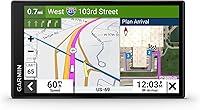
How to Update Maps on a Garmin dēzl
For Garmin dezl map updates, check your model's supported update method, then follow its Wi-Fi or Garmin Express instructions. Keep power and connections in place until installation is complete.
On this page (7 sections)
- What should you check before Garmin dēzl map updates?
- How do you update Garmin dēzl maps over Wi-Fi?
- How do you update a Garmin dēzl with Garmin Express?
- Which dēzl suits you if you're replacing your navigator?
- Why might a Garmin dēzl update fail?
- What should you check after installation?
- Should you update your dēzl or buy another model?
For Garmin dezl map updates, use the method supported by your exact model, then keep the required power and connections in place until installation finishes. Follow its Wi-Fi or Garmin Express instructions rather than borrowing steps from a different dēzl.
You usually don't need to replace a navigator just because its maps need attention. Check its update options first, then consider a different model only if you also need a larger screen or other truck features.
Find your model's manual through Garmin support. Menu names, connection needs, and supported update methods can differ.
What should you check before Garmin dēzl map updates?
Confirm your model, update method, and power requirements before starting. Set aside time while parked so the download and installation won't compete with your departure.
Use this checklist before connecting anything:
- Identify the exact model. Use that model's manual rather than a general video or instructions for another generation.
- Choose a reliable internet connection. Avoid starting where you expect to lose access before the download finishes.
- Arrange power as instructed. Don't rely on a partly charged device for a job of unknown length.
- Prepare the computer connection if needed. A USB cable that charges a device may not support data transfer.
- Record your current truck profile. Have the correct vehicle dimensions and weight ready to check before your next trip.
Maps, device software, and phone-connected services serve different purposes. Read each update prompt so you know what you're installing, and don't assume a working phone connection means the maps are current.
If you're choosing a navigator as well as updating one, start with our best truck GPS guide. Pick the cab features you need before comparing how you'll maintain the device.
How do you update Garmin dēzl maps over Wi-Fi?
If your model supports wireless map installation, connect it to a reliable Wi-Fi network and open its update settings. Follow the manual's power instructions throughout the process.
- Park and connect the navigator to the required power source.
- Join a Wi-Fi network with working internet access.
- Open the update option identified in your model's manual.
- Check which map or software updates are available.
- Read the prompts and start the updates you need.
- Wait for confirmation that installation is complete before disconnecting.
A network can appear connected without giving the device internet access. If the download won't begin, check whether the network requires a sign-in step and follow Garmin's connection guidance.
Don't move the navigator out of Wi-Fi range halfway through the download. Choose a place where it can stay connected until the job is done.
Use Garmin's software support resources if the device can't complete the process. Follow the guidance for your model and the message on its screen.
Do Garmin dēzl map updates need a computer?
Only use a computer when it's part of a supported update method for your navigator. Wi-Fi connectivity by itself doesn't prove that a model can install maps wirelessly.
Likewise, the dēzl smartphone app and a map-update tool aren't interchangeable. App pairing for traffic or truck services doesn't confirm that a map download has happened.
How do you update a Garmin dēzl with Garmin Express?
For a compatible dēzl, Garmin Express provides a computer-based way to check for updates. Confirm support for both your navigator and computer before installing the software.
- Get Garmin Express from Garmin and open it on your computer.
- Connect the navigator using a compatible USB data cable.
- Add the device when prompted, checking that the correct navigator appears.
- Review the available updates and any storage or connection instructions.
- Start the installation and keep both devices connected as directed.
- Wait for completion and follow the disconnect instructions.
Keep the computer online and prevent it from going to sleep during the process. A laptop should have enough power for the whole job, preferably using its charger.
If Express can't find the navigator, resolve that connection problem before chasing a map problem. Check the cable and USB connection using Garmin's instructions, then try another compatible cable or port if advised.
Which dēzl suits you if you're replacing your navigator?
Choose around screen placement, truck planning, and the connected services you'll use. A routine map update alone isn't a reason to replace a working device.
All 3 models below offer routing based on truck size and weight, plus aerial destination views. Custom truck routing isn't available in every area, and posted signs and road conditions always take priority.
Garmin dēzl OTR620: for drivers visiting unfamiliar yards
Choose the OTR620 if finding the correct truck entrance matters more than having a larger screen. Its community tools can help you plan arrivals at unfamiliar sites when paired with the dēzl app on a compatible smartphone.
BirdsEye Direct Satellite Imagery provides overhead destination views, while community-shared docks, gates, and entrances add another planning aid. Review that information while parked and confirm delivery instructions with the destination when access is unclear.
It also offers nearby CAT Scale searches in the U.S. and Canada. Wind overlays and alerts require the app, so skip it if those connected tools are your main reason to buy and you won't pair a phone.
Our Garmin dēzl OTR620 review explains its routing and arrival-planning features in more detail.
Garmin dēzl OTR610: for drivers planning stops ahead
Choose the OTR610 if reviewing fuel stops, breaks, and overnight stays is central to your routine. Its route planner helps you look at the whole journey before departure.
Its map coverage includes the US, Mexico, Canada, US Virgin Islands, Cayman Islands, and Bahamas. Check your intended travel area and the supported update process before buying.
The Truck & Trailer Services directory lets you filter stops by brand or amenity. App pairing adds live traffic and weather, while PrePass notifications also need an active PrePass account.
Skip this model if a larger display is your main goal. It makes more sense for someone content with a compact screen who wants route-wide stop planning.
Garmin dēzl OTR720: for drivers wanting a larger map view
Choose the OTR720 if the larger display fits your cab and is easier for you to read from the driving position. Check placement before buying so the screen won't block your view.
Like the OTR620, it includes community destination information, CAT Scale searches, and app-connected wind information. The clearest reason to choose between these 2 is how much display space you want.
Skip the OTR720 if mounting space is tight or your current screen is already comfortable to read. A larger display doesn't remove the need to enter accurate truck details or review the route.
For a broader brand comparison, see Garmin dēzl vs Rand McNally truck GPS.
Why might a Garmin dēzl update fail?
Start with the error message, power, internet access, and cable connection. Repeating the same attempt without identifying the failure can waste another download.
Separate the problem into the stage where it occurs:
- The device isn't detected: check the USB data cable and computer connection.
- The download won't start: check internet access and any instructions on screen.
- A storage warning appears: follow the model-specific guidance before deleting files or buying a memory card.
- Installation appears paused: consult Garmin's instructions before unplugging or forcing a restart.
Record the exact wording of an error and what the device was doing when it appeared. That gives support something more useful than “the update doesn't work.”
Don't delete map files manually to make space unless Garmin directs you to do so. Avoid repeated forced restarts while installation is active.
What should you check after installation?
Confirm completion, review your truck profile, and inspect the next route before driving. If your model shows map information, compare it with the update tool's completion details.
Check the destination entrance rather than accepting the street address as the final approach. An address may lead toward an office or visitor entrance instead of the gate your truck needs.
Updated maps can't account for every temporary closure, changed restriction, or access instruction. For the OTR610, Garmin also cautions that route suggestions may not account for every vehicle characteristic.
Keep the mount secure, route the power cable away from controls, and clean the screen with a soft cloth following the care instructions. Make menu changes while parked.
If the position marker is wrong, use our guide to why a car GPS shows the wrong location to separate location problems from outdated roads. For routing differences, read truck GPS vs car GPS.
Should you update your dēzl or buy another model?
Update your current navigator first if it still meets your needs and has a supported update path. Garmin dezl map updates maintain map information; replacing hardware makes sense when you also need different screen or planning features.
Choose the OTR620 for community-assisted arrival planning in a compact format. Pick the OTR610 for reviewing planned stops, or the OTR720 when a larger map view earns its space in your cab.
Before spending, confirm the exact model's update process and phone requirements for the services you want. Use our truck GPS guide to narrow the choice around your routes and driving setup.
Frequently asked questions
How do I update maps on my Garmin dēzl?
Use the update method supported by your exact dēzl model, following its manual for Wi-Fi or Garmin Express instructions. Check for available maps, keep the required power and connections in place, and wait for completion before disconnecting; review your truck profile and planned route before driving again.
Can I update Garmin dēzl maps without a computer?
Yes, if your exact model supports Wi-Fi map updates. Confirm that feature in its manual, then use a reliable network and the required power connection; Wi-Fi connectivity alone doesn't confirm wireless map installation, and pairing the dēzl smartphone app isn't a substitute for following the navigator's map-update instructions.
How long do Garmin dēzl map updates take?
There's no single completion time for every update because download size and connection speed vary. Start while parked with time to spare, keep the required connections in place, and wait for the completion message; if progress appears to stop, record any error and consult Garmin's guidance before interrupting installation.
Will a Garmin dēzl map update change truck routes?
New map information can change suggested routes, but it can't guarantee that every restriction or entrance is current. Check your truck's size and weight settings after updating, then review the trip before departure; custom truck routing isn't available everywhere, and posted signs and road conditions take priority over screen directions.